Periodic Test Supervision
Overview
Alarm panels send a periodic test report at a fixed interval, typically once every 24 hours. By default this is Contact ID event 602. The report proves that the panel and its communication path are working. When a panel stops sending it, the panel may be switched off, damaged or cut off, and the monitoring station needs to know.
Periodic Test Supervision makes Xguard Desktop keep track of this for every validated client. For each account, Xguard records when the last test arrived and calculates when the next one is due. If the test does not arrive in time, Xguard raises a Periodic Test Failure event itself and sends it to the central monitoring station (CMS), just as if the panel had reported it.
What the operator gets
- No noise: supervised test reports are absorbed by Xguard. They are not shown in the Events list and are not forwarded to the CMS.
- Only exceptions are reported: a failure event (E) when a test is missed, and a restore event (R) when the test comes back. Both carry the panel's own account number.
- Visual status everywhere: a status badge in the client record, a PERIODIC TEST section in Device Information, and a clock icon next to the client name in the client lists.
- Global defaults with per-client overrides: one station-wide setting, which any client can replace with its own values or switch off.
Note
Supervision starts when a client is validated (Clients tab → Validate). Clients waiting for validation are not supervised.
How supervision works
Every supervised account goes through the states below. The times are calculated from the Interval and Grace settings:
- Expected time = time of the last test received + Interval.
- Deadline = Expected time + Grace.
| State | Badge | Meaning |
|---|---|---|
| NORMAL | Green check, "Test on time" | The last test arrived and the next one is not yet due. |
| LATE | Orange clock, "Late" | The expected time has passed, but the deadline has not. This is shown on screen only. No event is sent yet. |
| TEST FAILURE | Red triangle, "Test failure" | The deadline has passed without a test. Xguard sends the failure event (E354 by default) to the CMS once. The state stays until a test arrives. |
| WAITING | Blue hourglass, "Waiting for test" | Shown after Restart: Xguard ignores the old history and waits for the next test, which becomes the new reference. |
| not supervised | Grey dot | Supervision is Off for this client, or the client is not validated. |
Failure and restore events
When an account reaches TEST FAILURE, Xguard generates a Contact ID event with the Failure code (default 354) as a new event (E354), using the panel's account number. When the next periodic test is received, Xguard sends the matching restore (R354) and the account goes back to NORMAL.
Code 354 is the standard Contact ID code for Failure to communicate event (SIA DC-05), so any CMS software recognises it without extra programming. It can be changed in the Failure code field (Global settings) if the CMS expects a different code.
In the Events list, these events appear with source Local and are named Periodic Test Failure and Periodic Test Restore.

Note
Xguard does not flood the CMS with failures after it has been closed for a while, or right after a client is validated: a deadline is never earlier than the moment supervision started plus the Grace time.
Global settings
Location: Settings → Options → Global Periodic Test Supervision.
This card sets the station defaults. They apply to every client whose supervision is set to Global, which is the default for new clients.
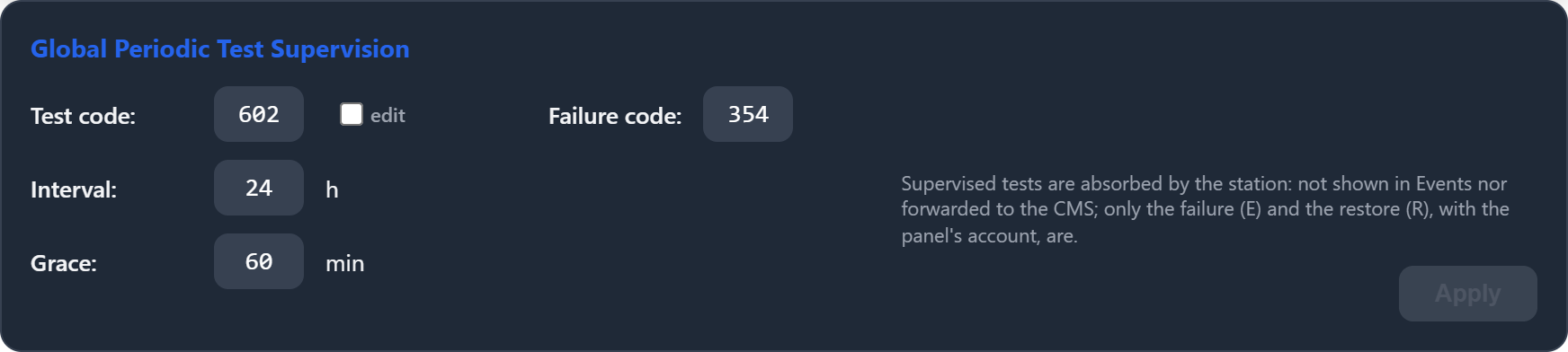
| Field | Default | Description |
|---|---|---|
| Test code | 602 | Contact ID code the panels use for their periodic test. Reports with this code are the ones supervised (and absorbed). The field is locked; see edit. |
| edit | — | Unlocks the Test code field after a confirmation. A wrong code makes Xguard stop recognising the panels' tests, so every supervised client would end up in TEST FAILURE. |
| Failure code | 354 | Contact ID code Xguard uses for the failure (E) and restore (R) events it sends to the CMS. |
| Interval | 24 h | How often the panels send their test. Decimal values are accepted (for example 0.5 = 30 minutes). |
| Grace | 60 min | Tolerance after the expected time before the test is considered missed. During this time the client is shown as LATE. |
| Apply | — | Saves the changes. The button is active only when something has changed. Clients in Global mode use the new values immediately. |
Tip
Match the Interval to the panels' own programming. If a panel sends its test every 12 hours but the Interval is 24 h, a missed test is only detected a day later. If the Interval is shorter than the panel's test period, the client will go into failure repeatedly.
Per-client settings and status
Location: Clients tab → select a client → Client record → Test supervision.
Each client has its own Test supervision card. It shows the live status and lets the operator choose how the client is supervised. The big badge in the top-right corner always shows the current state (see How supervision works).
Supervision mode
| Mode | Behaviour |
|---|---|
| Global | Uses the station defaults from Settings → Options (see Global settings). The code, interval and grace fields are hidden. This is the default. |
| Custom | The client uses its own Test code, Interval and Grace. Use it for panels programmed with a different test period. |
| Off | The client is not supervised. Its periodic tests are shown in Events and forwarded to the CMS like any other event. |

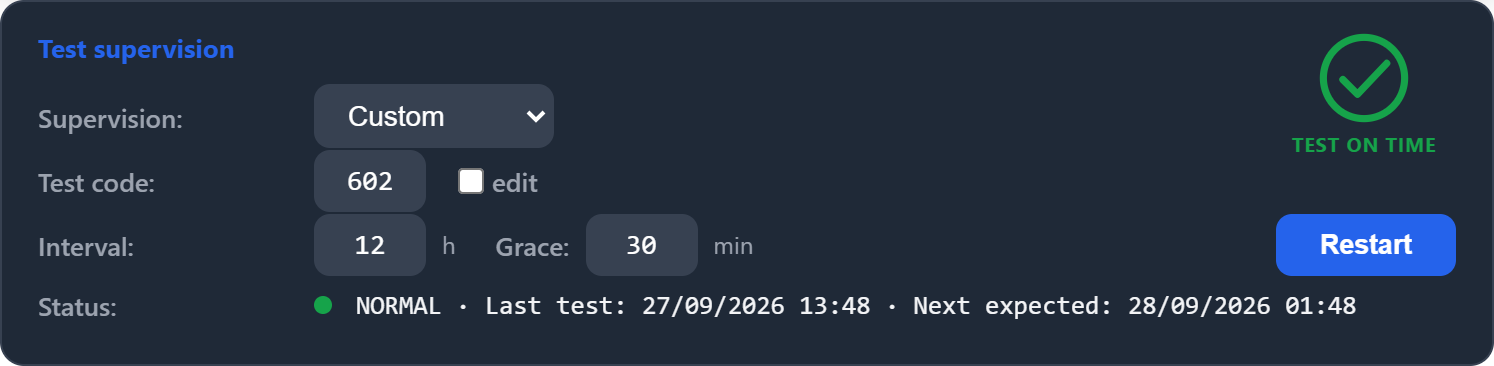

Fields and buttons
| Item | Description |
|---|---|
| Supervision | Global, Custom or Off (see Supervision mode). |
| Test code | Custom mode only. Periodic test code for this client. Locked like the global one: tick edit to change it. |
| Interval / Grace | Custom mode only. Test period (hours) and tolerance (minutes) for this client. |
| Save | Appears when a setting has been changed but not saved. Edited fields turn white until saved. Validate / Update in the footer also saves them. |
| Restart | Forgets the test history and waits for the next test, which becomes the new reference. Any pending TEST FAILURE is cleared. If no test arrives within Interval + Grace, the client goes into failure as usual. |
| Status | Current state, time of the last test and when the next one is expected (or, after Restart, the deadline for the first test). |
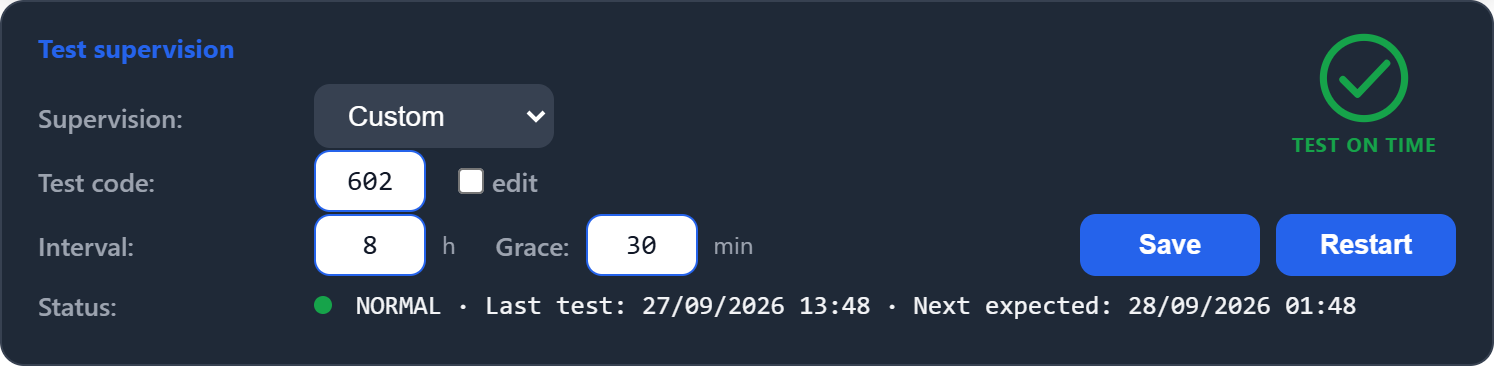
Tip
Use Restart after reprogramming a panel (new test time or period) or after a long planned shutdown, so the old history does not trigger a false failure.
Status examples



When a client has partitions whose accounts use different supervision settings, the Status area shows one line per account, each starting with its account number. When all accounts share the same settings, a single line summarises the device (the worst state among them).
Device Information
Location: Online tab → select a client → Device Information → PERIODIC TEST.
A read-only summary of the supervision for the selected device, next to its communication details.

| Field | Description |
|---|---|
| Last test | Date and time of the last periodic test received ("never received" if none has arrived yet). |
| Next expected | When the next test is due. After Restart, it shows "Waiting for the next test" and the deadline. |
| Status | NORMAL, LATE (with how late), TEST FAILURE (with how long past the deadline) or not supervised. |
Indicators in the client lists
In the Online, Offline and Clients lists, a clock icon appears after the client name when its periodic test is late or has failed. Nothing is shown while the client is on time or not supervised. Hover over the icon to see its meaning.
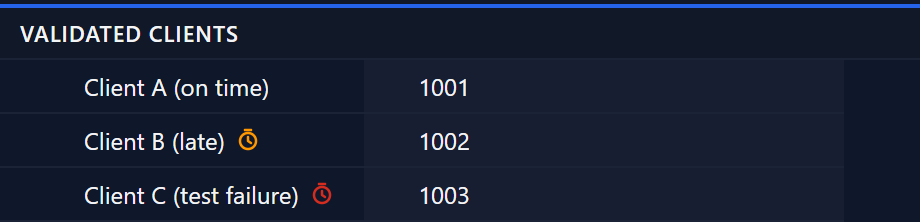
Quick reference
| I want to… | Do this |
|---|---|
| Change the test period for all panels | Settings → Options → Global Periodic Test Supervision → Interval → Apply. |
| Use a different period for one panel | Client record → Supervision: Custom → set Interval / Grace → Save. |
| Stop supervising one panel | Client record → Supervision: Off → Save. |
| Clear a failure after reprogramming a panel | Client record → Restart. |
| Change the code sent to the CMS on failure | Settings → Options → Failure code → Apply. |
| See which clients have a problem | Look for the orange / red clock next to the names in the client lists. |